Spark
Spark is the AI assistant in Sitefire. It reads your Sitefire data: your prompts, answers, visibility, citations, sentiment and actions. Ask it a question in plain words and it answers with your numbers.
Every company has Spark. You do not set it up. To open it, click Agents in the sidebar, then Spark under New chat.
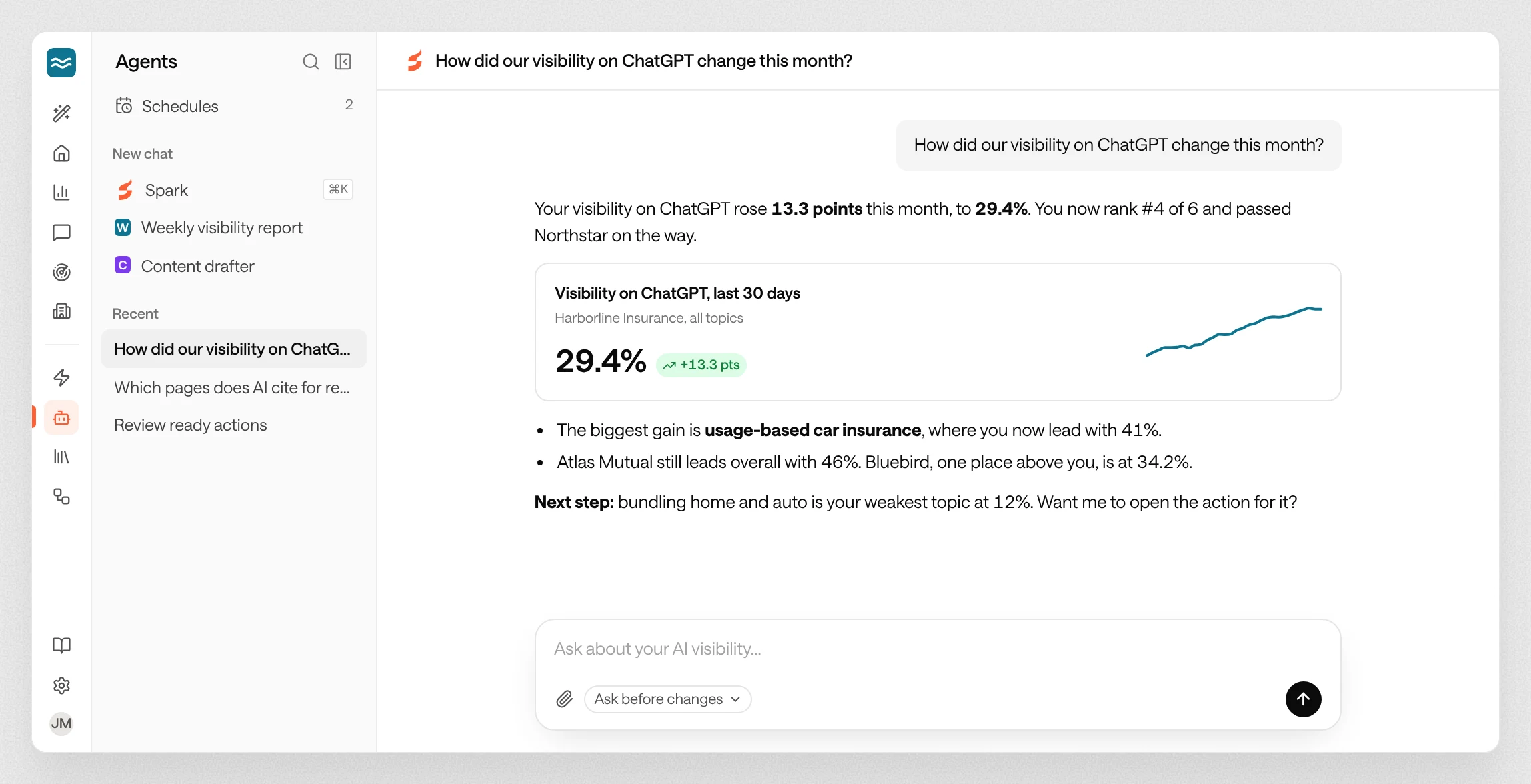
If you do not see Agents in the sidebar, contact us.
What you can ask
Start with one of the suggestions, or type your own question:
- Review my visibility: where your brand appears and what changed.
- Find my next opportunity: a useful next step for your AI visibility.
- Review ready actions: the work that is ready to move forward.
Other examples:
- “Why did our visibility on ChatGPT drop last week?”
- “Which competitor gained the most citations this month?”
- “Which pages do AI answers cite for our pricing topic?”
Point Spark at files and skills
Type @ in the message box to add a file from Brand Context or a skill. Spark then uses it in its answer.
Changes need your review
Spark can propose changes, for example new prompts for your prompt set. It shows the proposal first. You select what to keep and click Apply selected prompts. Nothing changes before you apply it.
For tools that write or delete, Spark follows the same access levels as your own agents. See Tool approvals.
Spark and agents
Spark and agents are two different features:
| Spark | Agents | |
|---|---|---|
| What it is | One assistant that every company has | Assistants that your company builds |
| What it is for | Questions and quick tasks in a chat | Recurring work, for example a weekly report |
| Setup | None | You write the instructions in Agent Builder |
The two work together. In Agent Builder, Spark helps you write and change an agent’s setup. In a chat, Spark can hand a task to one of your agents.
Usage
Spark uses credits from your plan. See Plans and billing.
Learn more
- Schedules: let Spark start a chat on its own at a set time.
- Spark in Slack: ask Spark questions in Slack.