dotCMS
This guide walks you through connecting a dotCMS instance for CMS integration so Sitefire can publish articles to it as drafts.
Sitefire needs two things to connect to dotCMS: the address of your instance and an API token.
Copy your dotCMS URL
Use the https address of your dotCMS instance, with no path:
https://cms.example.comThe address must be reachable from the internet over https, without a port number. Sitefire cannot reach an instance on localhost or on a private network.
Create an API token
Screenshots show dotCMS 26.09.03-01. Labels may differ in other versions. User details are hidden in these examples.
In dotCMS, go to Settings → Users and select the user the token belongs to.
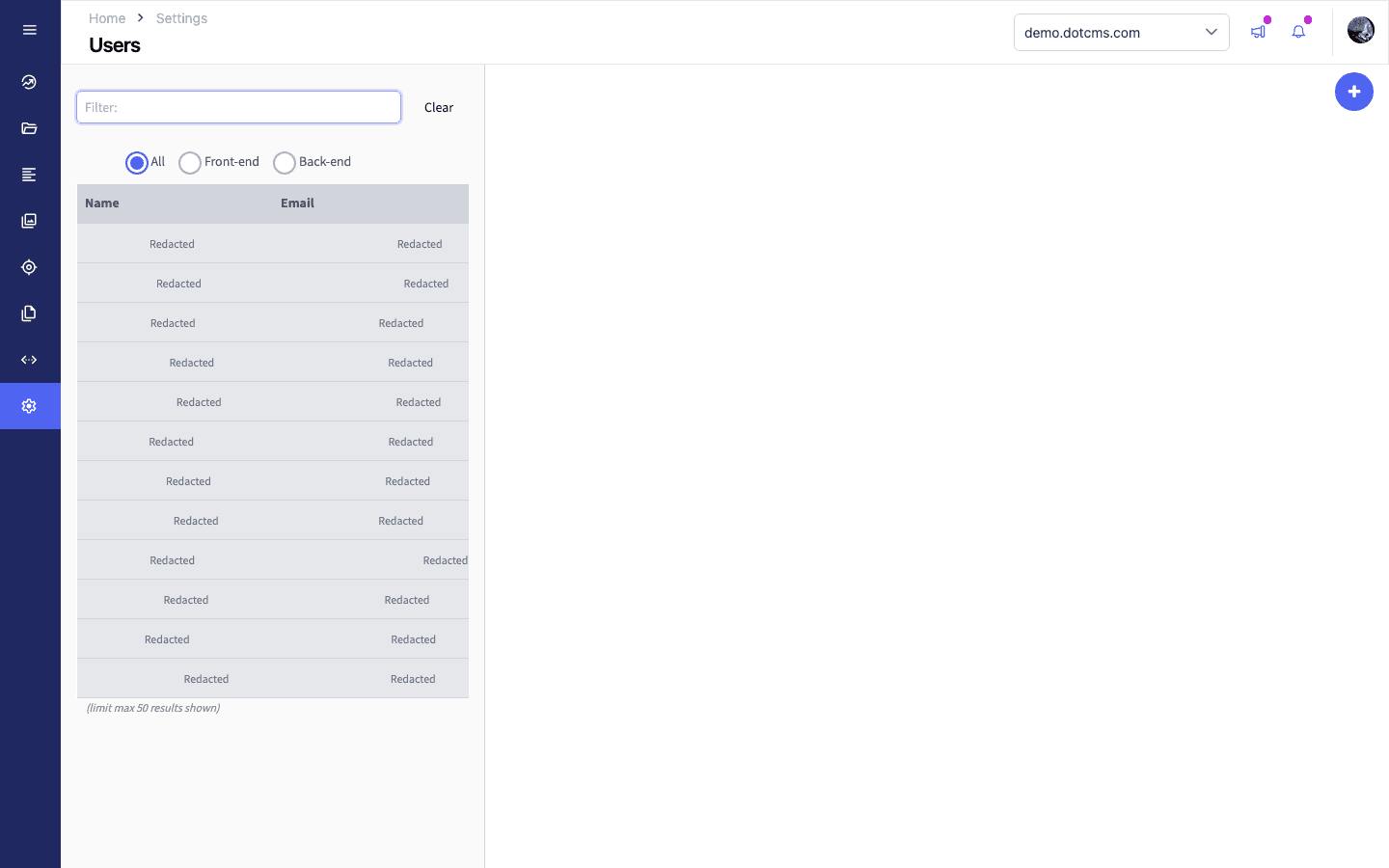
Select the service account that Sitefire will use.
Open the API Access Tokens tab, then click Request New Token.
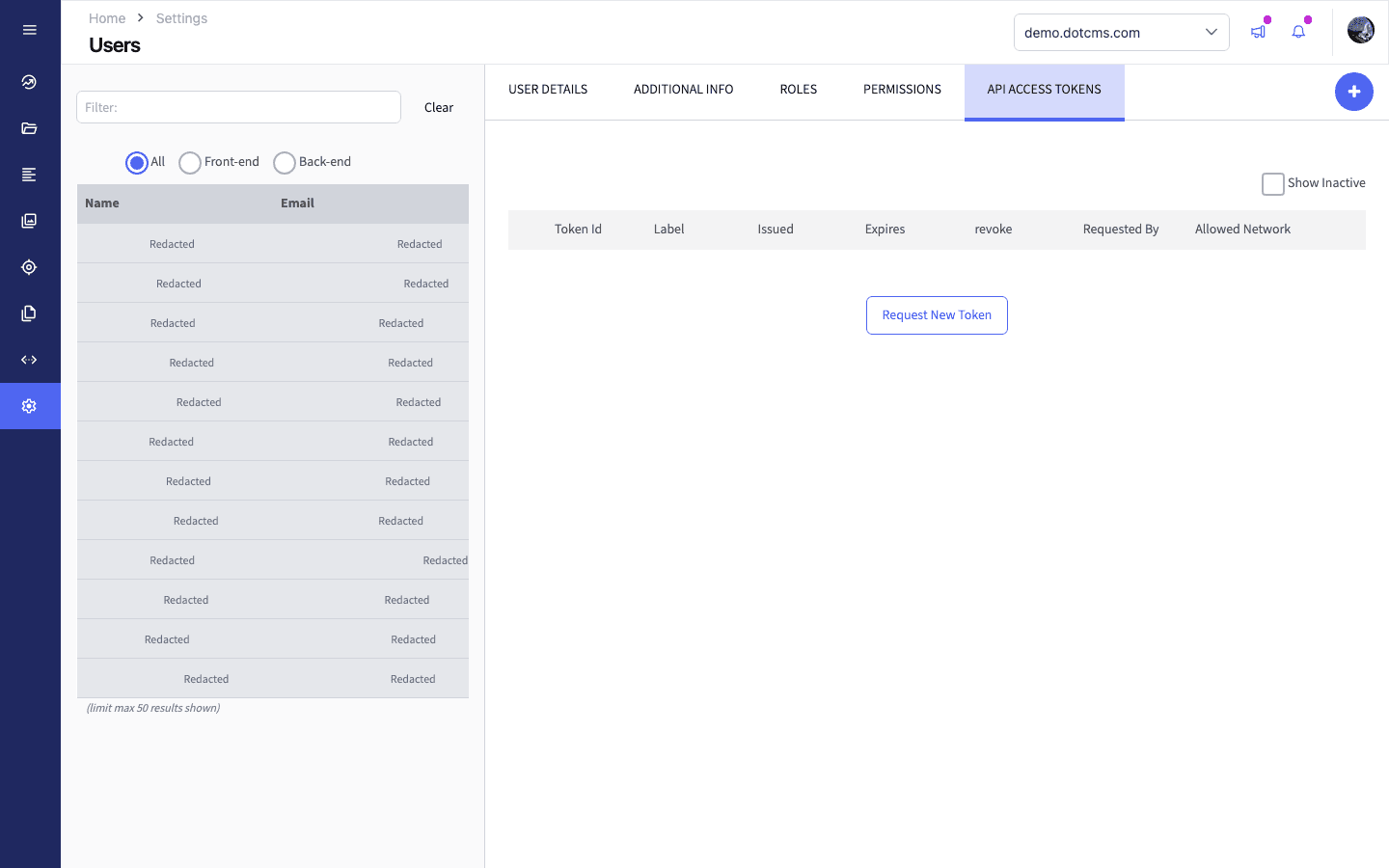
The API Access Tokens tab belongs to the selected user.
Give the token a Label (for example sitefire) and an Expires Date. Leave Allow Network (CIDR) as 0.0.0.0/0.
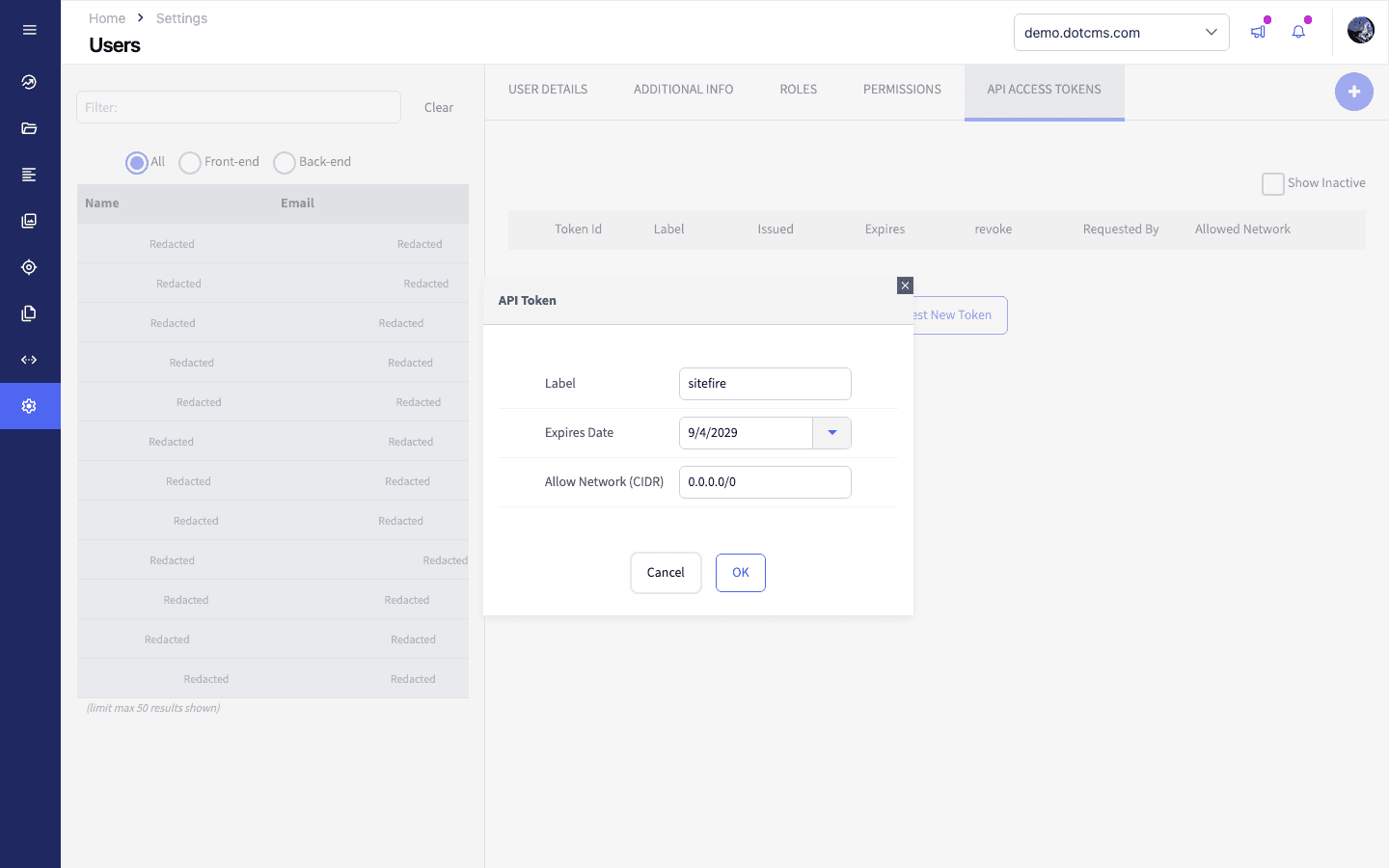
Choose an expiry date that matches your token-rotation policy. The date shown is an example.
Click OK, then get token and copy the value.
Paste the token into the API token field in Sitefire.
Leave the network unrestricted. Sitefire pushes from changing IP addresses, so a narrower CIDR range blocks it.
Use a service account rather than a person. The token inherits that user’s permissions, and it stops working when the person leaves.
Note the expiry date you set. When the token expires, pushes fail with an invalid-credentials error that does not mention expiry.
Give the user the right permissions
The token’s user needs to:
- read content types
- read and write content
- run the content type’s initial save-only workflow action
To create an article, the content type must offer an initial workflow action with Save content or Save Draft content. It may also include Unlock or Unarchive, but no publishing or custom sub-actions. The token’s user must be allowed to run that action. The standard System Workflow is suitable.
Updates save directly to the working draft without running workflow actions. The token does not need publish or workflow-management permission.
Select a content type
After connecting, Sitefire shows the content types on your instance. Select the one you use for articles, for example Blog.
Sitefire lists a content type only if it has at least one field Sitefire can write into.
Map your fields
Map each article field to the matching dotCMS field.
| dotCMS field type | Use it for | What happens |
|---|---|---|
| Text | Title, Slug | Stored as written |
| Textarea | Excerpt | Markdown stays markdown |
| Block Editor | Body | Converted to Block Editor content |
| WYSIWYG | Body | Converted to HTML |
| Date, Date and Time | Publish date | Stored as written |
| Custom | Slug | Stored as written, when the field is indexed |
Map the article slug to the field your URL map is built from. On dotCMS’s own Blog type that field is urlTitle, and it is required.
Sitefire also uses this field to find an article it pushed before. Without it, every push creates another article instead of updating the first one.
Fields Sitefire does not offer
Image, file, category, tag, and relationship fields need a value Sitefire cannot supply, so they are not offered as mapping targets.
Custom fields are offered only when they are indexed and hold text. dotCMS uses custom fields for two different jobs: real content such as urlTitle, and editor widgets such as a character counter. Only the first kind is indexed.
Sitefire fills the Site or Folder field itself, from the site your content type belongs to. It is not offered for mapping.
If dotCMS rejects the article
“No save-only dotCMS workflow action is available”. Ask your dotCMS administrator to make an initial Save content or Save Draft content action available to the token’s user. Publishing, Set Value, and custom script sub-actions are not supported for article creation.
“requires fields Sitefire sent no value for”. The content type has a required field that received nothing. If it is a text or date field, map it. If it is an image, category, or site field, make it optional in dotCMS or give it a default value.
“Invalid dotCMS API token”. The token is wrong, has expired, or its user cannot read content types and write content.
“does not look like a dotCMS instance”. The URL points somewhere other than dotCMS. Check it is the address of the CMS itself, with no path.
Where the drafts arrive
New articles arrive as unpublished working drafts. Updating a published article changes its working draft; the published version stays live until you publish the revision.
The article lands on the site its content type belongs to. A content type shared across all sites goes to your default site.
View in dotCMS on a pushed article opens Content Search in your instance.